Save what matters.
Find it when you need it.
Keep links, screenshots, videos, and PDFs in one place. SaviSense uses AI to name and organize what you save, so it’s easy to find later.

See how it works.
From saving something to finding it again.
Send it to SaviSense.
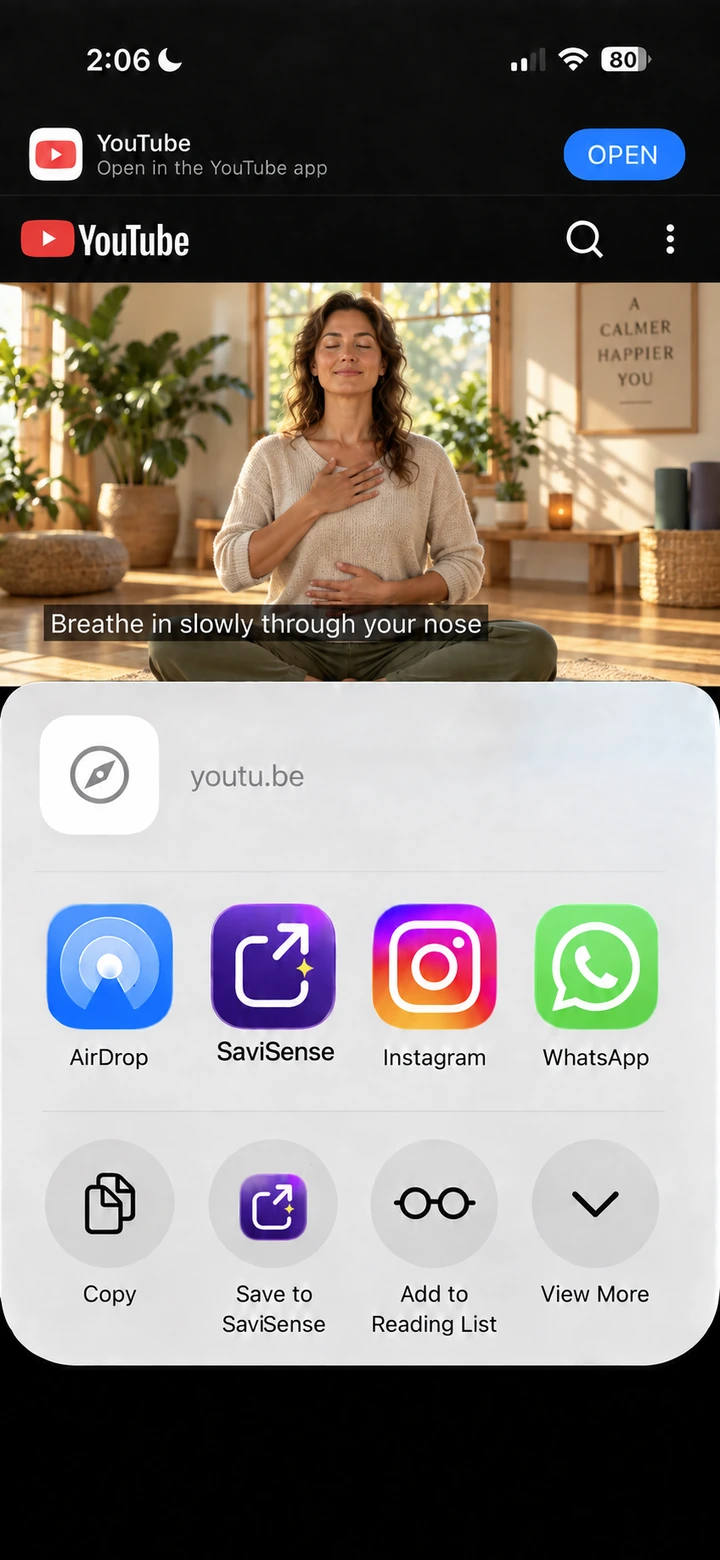
Tap Share in a supported app and choose SaviSense. Review the suggested title, tags, and folder, then tap Save.
-
1 · Tap Share
-
2 · Choose SaviSense

Let SaviSense name and sort it.
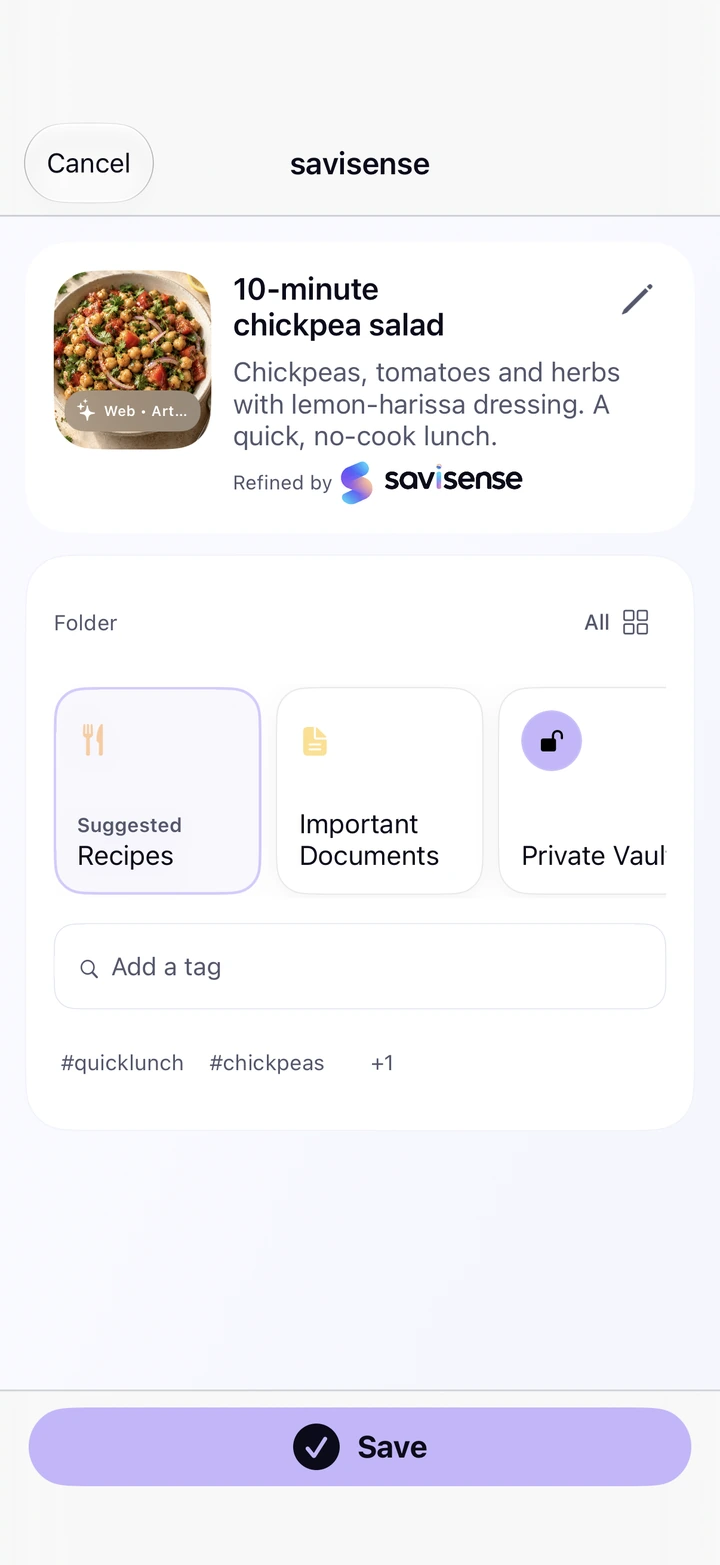
SaviSense uses AI to suggest clear names, summaries, tags, and folders for your screenshots, links, photos, videos, and files. Review or edit the details, then tap Save.
- A name you recognize
- A useful title and short summary, so you know what you saved.
- Tags that help you find it
- Helpful keywords, ready for the next time you search.
- A folder that fits
- A suggested home for each save, from Recipes to Places and Documents.
Your saves. One home.
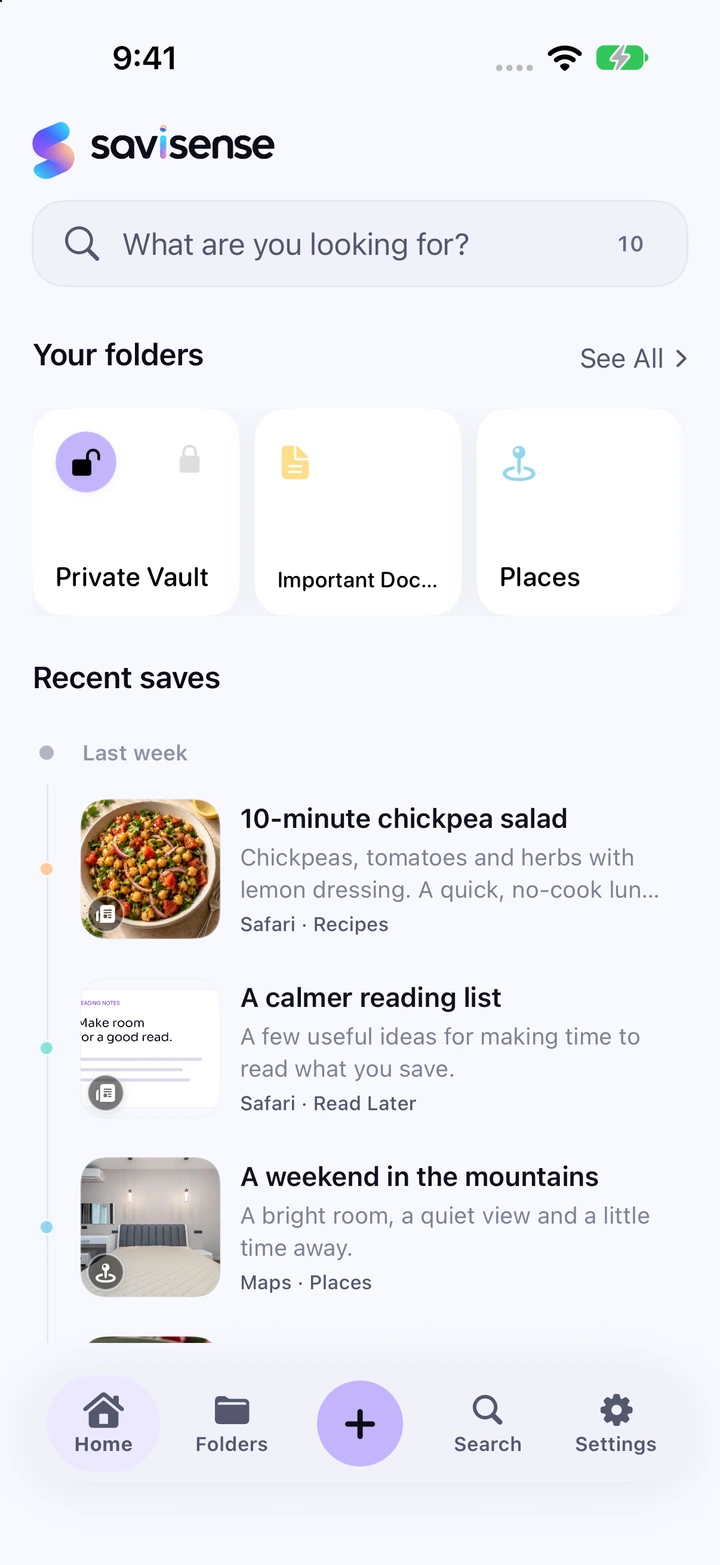
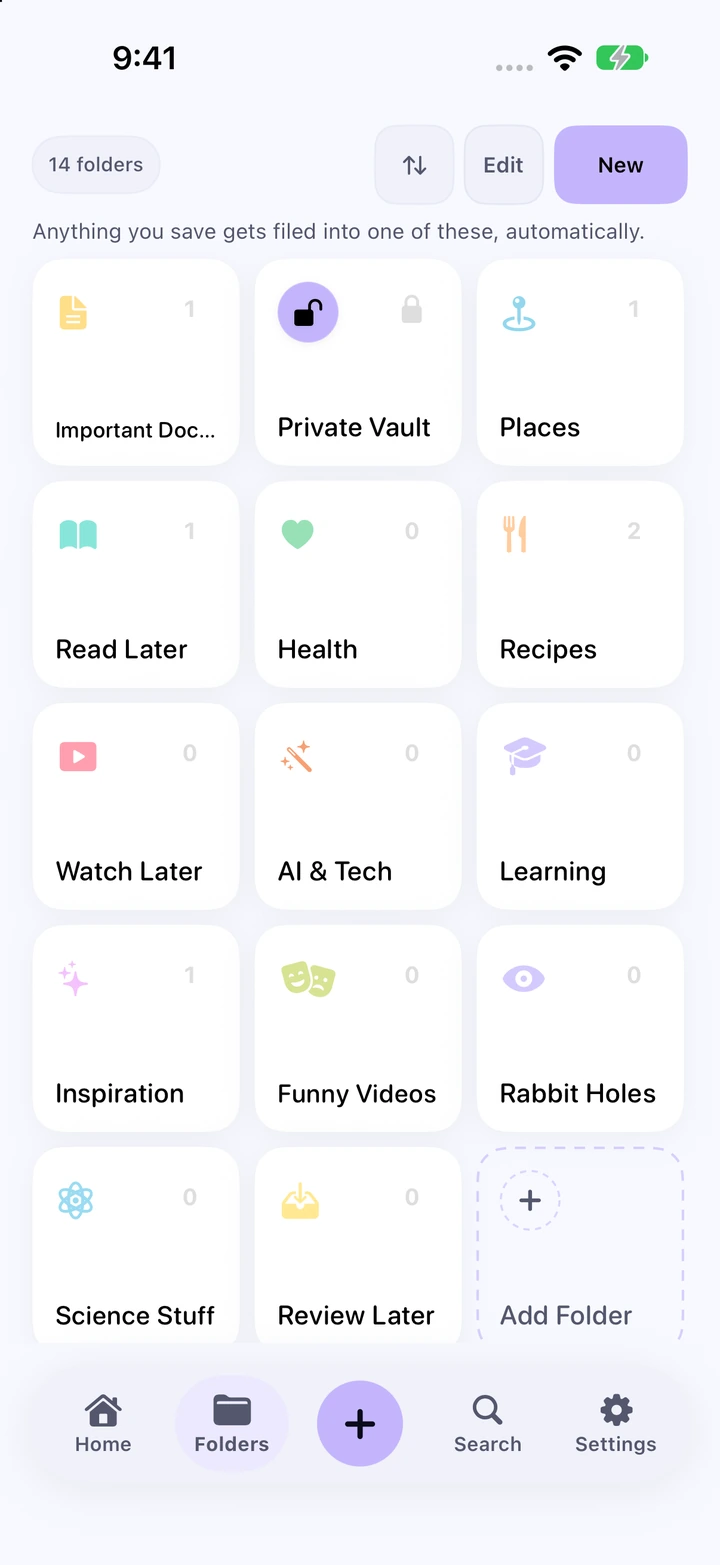
See your recent saves on Home with recognizable thumbnails, clear titles, and summaries. Browse your folders for recipes, places, documents, and everything else you want to keep.
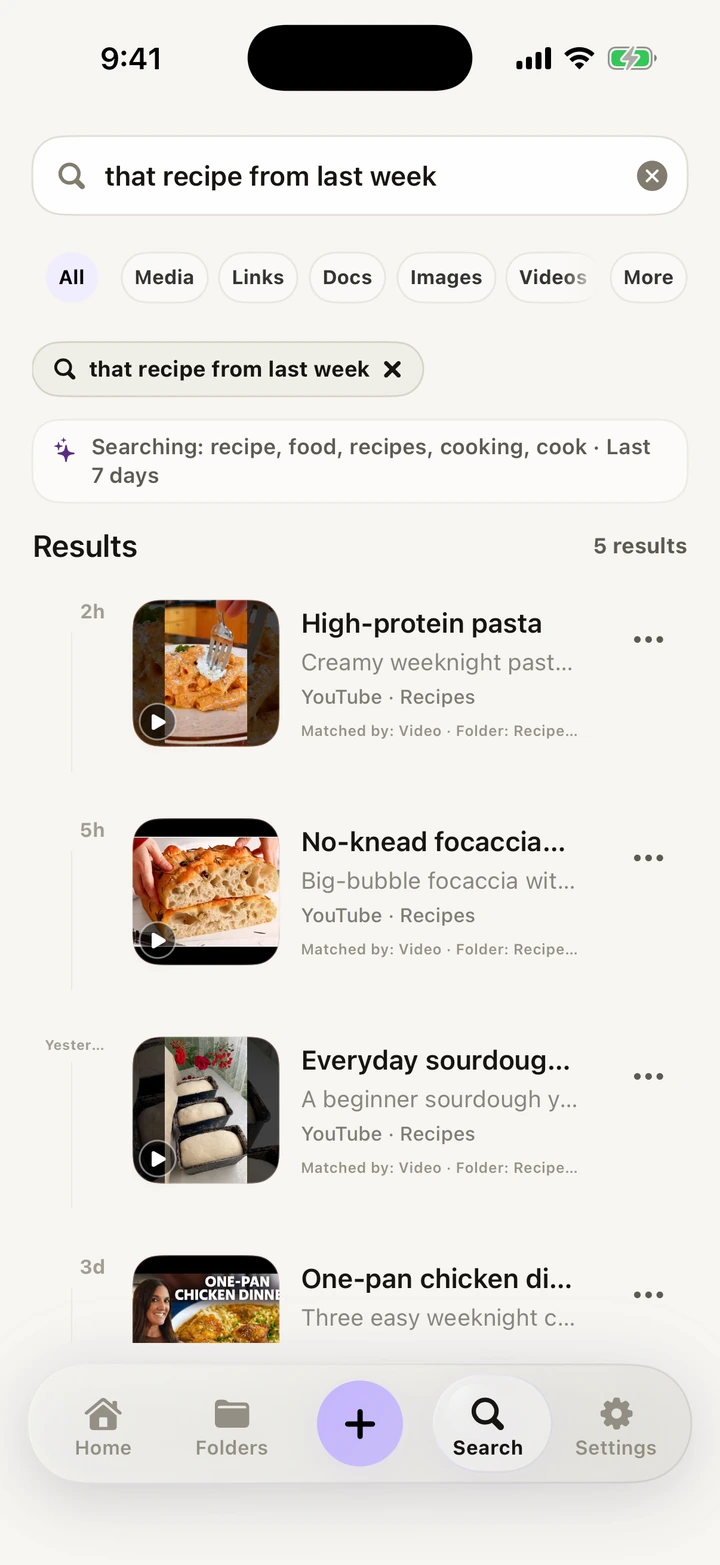
Find it in your own words.
Try “that recipe from last week.” Search using the details you remember.
Your library stays yours.
Saved on your iPhone. No account, ads, or cross-app tracking.
Cloud Help is optional and only uses eligible text with your permission. Your files and Private Vault items aren’t sent.
How privacy works
Private Vault
Protect sensitive items with Face ID, Touch ID, or your device passcode.
A few useful answers.
How do I add SaviSense to the Share menu?
Open a link in Safari and tap Share. Swipe through the app row to More. Tap Edit if iOS shows it, turn on SaviSense, then tap Done. You can move it near the front of the app row for next time.
Return to Share, choose SaviSense, review the suggested details, and tap Save. The app also includes a guided practice save.
What can I save?
Links, screenshots, photos, videos, and PDFs. Use Share in a supported app, or add an item directly from SaviSense.
Do I need an account or Cloud Help?
No account is required. Your library is stored on your iPhone. Cloud Help is optional and processes only eligible text with your permission; your files and Private Vault items aren’t sent. Read how privacy works.
Can I use my library offline?
Your saved local files and library stay available on your iPhone. Opening an online link, fetching a preview, or using Cloud Help needs an internet connection.
You saved it for a reason.
Keep it within reach with SaviSense.
No account required.